
Calibrate PDF Scale for Subcontractors: Verify Twice, Feed Won2Build
Two point and spec based calibration for construction takeoffs, plus a one minute verification checklist, pro tips, and Won2Build integration.

Open your PDF viewer’s Measure or Calibrate tool, click two points on a known dimension, type in the real-world distance and units, then apply that scale to the current page or the whole document. Store it before you touch a takeoff. Then run one quick check against a second, unrelated dimension elsewhere on the sheet to confirm the math holds up across the drawing.
TL;DR:
- Using spec-based calibration for known sheet size and scale notation provides more reliability, especially for repeated production imports.
- Always verify a calibrated scale by measuring an unrelated, labeled dimension to detect inaccuracies caused by units mismatch or distortion.
- Performing a second measurement check is essential to identify uneven distortion or export errors, preventing inaccuracies in material estimates.
- Document calibration details after every session and always run a quick pre-takeoff checklist to avoid errors that compound across large projects.
- Incorporating calibrated PDFs directly into estimating tools like Won2Build streamlines workflows and reduces manual entry errors in bids.
Table of Contents
- How to Calibrate PDF Scale Step by Step
- How Do You Verify a Calibrated PDF Scale?
- Best Practices for Repeatable Scale Calibration
- Why Scale Accuracy Determines Bid Accuracy
- What Most Calibration Advice Gets Backwards
- Bring Calibrated Plans Straight Into Your Estimates
- Vendor Docs Worth Bookmarking
- Sources
- FAQ
How to Calibrate PDF Scale Step by Step
Every major PDF editor buries the calibration tool in roughly the same spot: under the Measure or Analyze menu, often one right click away from a “Change Scale Ratio” command. Adobe Acrobat puts it inside the measurement tool’s context menu once you activate the ruler icon.
There are two paths to a correct scale, and picking the right one saves you from redoing a takeoff halfway through.
- Open the measurement tool. Activate it from the toolbar, then look for “Calibrate” or “Change Scale Ratio” in the right click menu or a dedicated settings icon.
- Two-point calibration. Click one end of a known dimension, then the other, using a wall length, a door width, or a printed dimension string with an exact figure on the sheet.
- Enter the real distance and units. Type the actual measurement (feet, inches, meters) exactly as printed on the drawing, not an estimate.
- Apply or store the scale. Choose whether it applies to the current page only or every page, then confirm before moving on.
- Specification-based alternative. If you already know the sheet size and the drawing scale printed in the title block (say, a 36 by 24 inch sheet at 1/4 inch equals 1 foot), calculate the real-world page width and enter it directly. This skips the click-based method entirely and, per guidance on scaling PDF floor plans, it’s the more reliable route for repeated production imports.
- Choose page scope carefully. Multi-sheet PDFs with mixed scales (a site plan at 1 inch equals 20 feet next to a detail at 1/2 inch equals 1 foot) need per-page calibration. Single-scale sets can apply to all pages at once and save you the repetition.
Foxit’s measurement tools let you store the calibrated scale to the current page or push it across the whole file, and expose snap-to-content and precision settings in the same dialog. Turning on snapping matters more than most people assume: it locks your click onto a vector endpoint, midpoint, or intersection instead of a stray pixel, which is where most bad calibrations start.
Pro Tip: Zoom in tight on both endpoints before you click. A one-pixel miss on a small drawing scale can throw off your entire quantity takeoff by several percents.
How Do You Verify a Calibrated PDF Scale?
Calibrating once and trusting it is how six-figure material errors happen. Run a second, independent measurement against a distant dimension you didn’t use for calibration, ideally one printed on the drawing with its own labeled figure. If that second check comes back within a fraction of an inch of the printed value, your scale is solid.
If it doesn’t match, you’re usually looking at one of these:
- Units mismatch. The tool defaulted to millimeters when your drawing is in feet and inches, or vice versa.
- Snap or endpoint error. You clicked slightly off the true corner or line end instead of the exact vector point.
- Rounding in the input field. Typing “24” instead of “24’6"” for a quarter-scale drawing compounds fast.
- Scaled-to-fit export. Someone printed the PDF to fit a page size instead of preserving the original sheet dimensions, so no single scale factor will ever be correct.
- Non-isotropic distortion. The horizontal and vertical scale don’t match because of an export or scan error.
That last one is the dangerous one. If your verification error is consistent across the sheet, a units fix or recalibration solves it. If the error changes depending on where you measure, no amount of recalibrating fixes it. A reliable read is to calibrate against one known dimension, then immediately test against a distant, unrelated one; inconsistent results point to distortion baked into the file itself, not a calibration mistake. At that point, request a fresh export from whoever produced the drawing rather than trying to patch around it.
For sheets with unusual title blocks or unclear scale notation, cross-check against common takeoff measurement errors before you commit to a full quantity pull.
Best Practices for Repeatable Scale Calibration
Production takeoff work rewards consistency over cleverness. A few habits separate crews who trust their numbers from crews who reverify everything twice.
- Default to spec-based calibration when the sheet size and drawing scale are printed and trustworthy. It fails loudly, not quietly, when a file was exported at the wrong size, which MUZWalls notes actually works in your favor since a bad export shows up immediately instead of silently skewing every measurement downstream.
- Document what you calibrated against. Note the dimension, its source (title block, dimension string, scale bar), and the date, right in your project file or takeoff notes.
- Set precision to match the work phase. Construction documents deserve tight precision (to the eighth or sixteenth of an inch); early schematic sets don’t need that resolution and it just slows you down.
- Keep snap-to-content on by default unless you’re working from a scanned drawing with no clean vector lines to grab.
Pro Tip: Build a one-minute checklist you run before every takeoff: open the file, confirm units, calibrate against a labeled dimension, verify against a second one. Skipping this step is exactly how a half-inch error on paper becomes a full pallet of overordered material.
Understanding how to read blueprints for takeoffs makes this checklist faster, since you’ll spot the right calibration anchor without hunting through the whole sheet.
Why Scale Accuracy Determines Bid Accuracy

A half-percent calibration error sounds trivial until it runs through a full quantity takeoff. Linear footage of trim, square footage of drywall, cubic yards of concrete: each one multiplies that small error across hundreds or thousands of units, and the gap between your estimate and reality grows with every additional page you take off using the same bad scale.
That’s the connection subcontractors miss when they treat calibration as a formality instead of the foundation of the whole estimate. Won2Build Takeoff links a correctly calibrated PDF directly into bid calculations and job cost tracking, so a quantity pulled from the drawing flows straight into your estimate without a manual re-entry step where errors like to hide.
The most reliable practical approach is straightforward: pick the calibration method that fits the file, run a second verification check on a distant dimension, and if errors vary from one spot to another, get a fresh export. No amount of recalibrating fixes a file that’s distorted unevenly across the sheet.
Add calibration verification as a required line item on your pre-takeoff checklist, not an optional step you skip when you’re behind schedule.
What Most Calibration Advice Gets Backwards
Most guides treat calibration as a one-time click-and-forget setup step. That’s backwards for anyone doing production takeoffs, not a one-off measurement. The two-point method gets all the attention online because it’s visual and easy to screenshot, but spec-based calibration is the more durable habit for repeated work. It fails immediately and obviously when a file was exported wrong, instead of quietly producing numbers that look plausible but are off by a consistent margin.
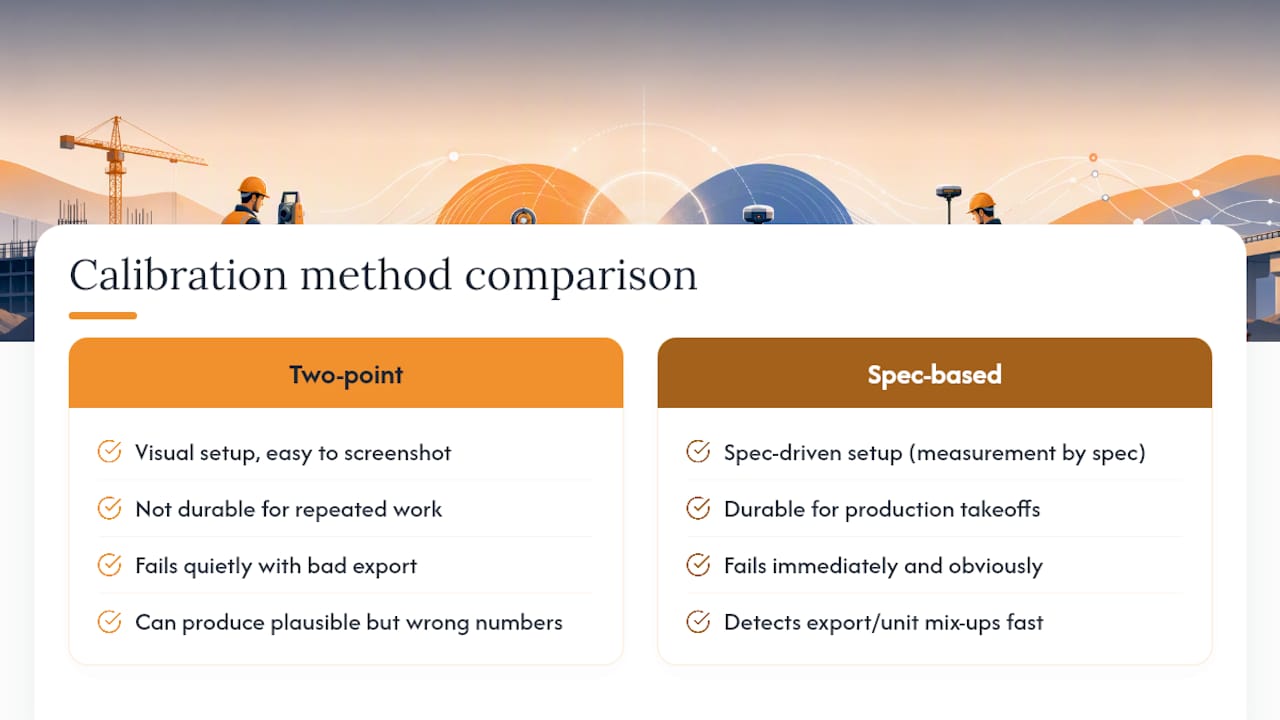
The verification step is where most workflows fall apart entirely. Calibrating once and moving straight to quantities skips the one check that catches distortion, unit mix-ups, and bad exports before they turn into an inflated material order. Treat that second measurement as mandatory, not optional.
If there’s one priority to take from this: build the checklist before you need it. A crew that verifies scale on autopilot catches a bad export in thirty seconds. A crew that doesn’t find out three weeks later when the concrete order comes in wrong.
— Jen Reese
Bring Calibrated Plans Straight Into Your Estimates
Won2build is the alternative to juggling a separate PDF viewer, a spreadsheet, and a standalone estimating tool for every bid. Once your plan is calibrated, Won2Build Takeoff carries that scale straight into quantity counts and feeds them directly into Bid Track for pricing, without a manual re-entry step where copy errors creep in.
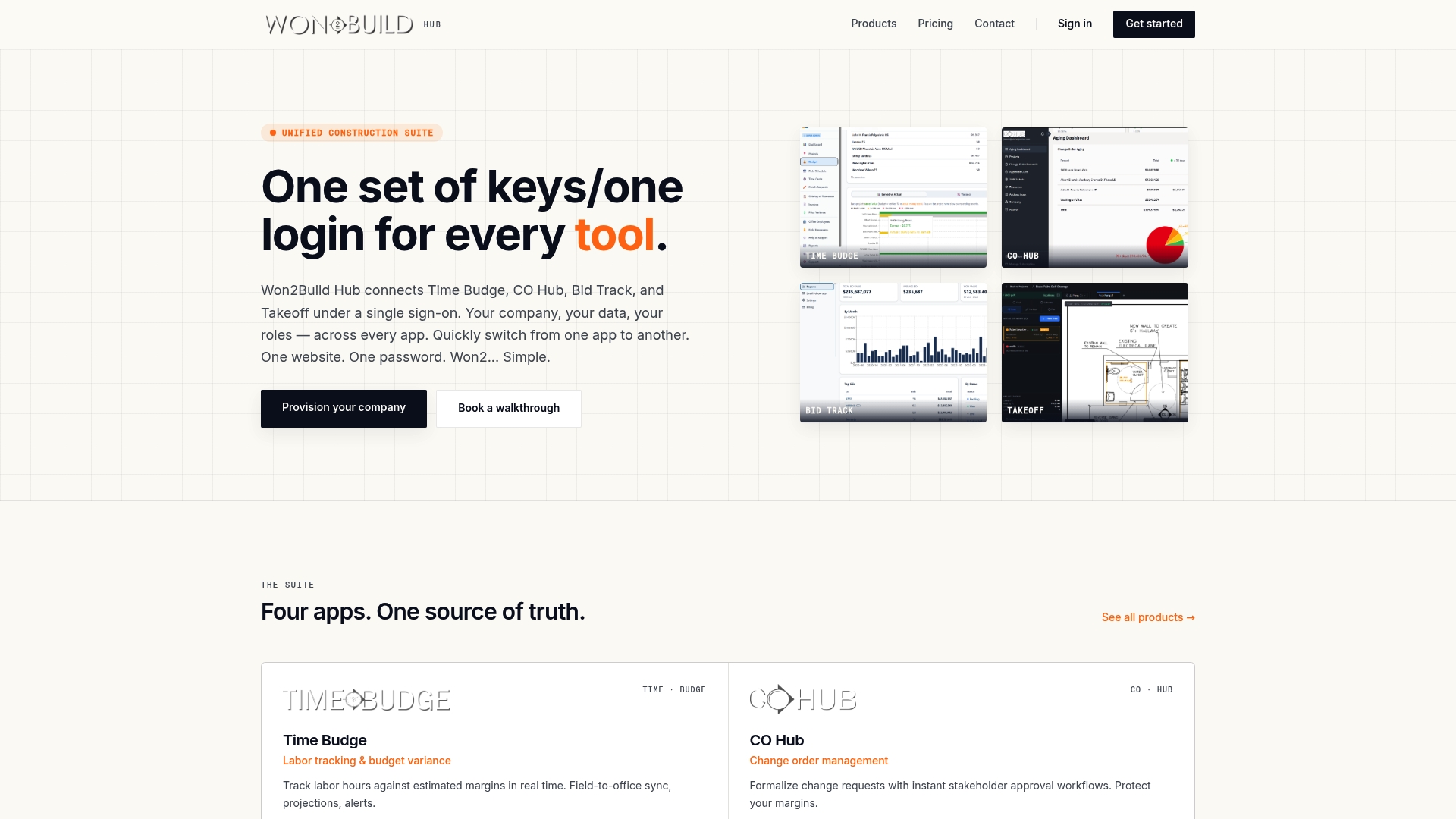
The whole suite runs on one login, so a calibrated takeoff, a bid estimate, and labor tracking in Time Budge stay connected instead of living in three disconnected files. Bid Track runs $199 per month per company, and the full plan lineup, including Time Budge, CO Hub, and Takeoff, is listed with current pricing on the Won2build site. Check the pricing page and see which combination fits your next bid cycle.
Vendor Docs Worth Bookmarking
For tool-specific quirks beyond the general steps above, these vendor pages cover the details that vary by software:
- Bluebeam: Set page scales covers storing scale across sheets in a multi-page set.
- ArcSite: How to scale/calibrate your canvas explains why calibration can shift zoom defaults and how to reset it.
- If you build or manage a custom PDF viewer, this pdf.js calibration thread covers the endpoint math and common UI bugs.
- For general page cleanup before calibrating, PerPageFax’s PDF organizer handles rotated or misordered pages that throw off click accuracy.
Sources
- How to measure on Adobe Acrobat — CLRN
- How to scale a PDF floor plan correctly — MUZWalls
- React + pdf.js calibration thread — Stack Overflow
FAQ
How Do I Calibrate My Digital Scale in a PDF?
Open the Measure tool, select the calibrate or “Change Scale Ratio” option, click two points on a known dimension, then type the actual distance and units. Apply the result to the current page or, if the whole set shares one scale, to every page, as Adobe Acrobat’s calibration flow illustrates.
How Do I Reset the Page Scale in Bluebeam?
Open the Set Page Scale tool from the Tools panel, then either recalibrate against a new known dimension or clear the existing scale before entering a fresh one. Bluebeam’s own guidance walks through both the initial setup and the reset process.
How Do I Change the Scale in a PDF Measuring Tool?
Right-click the active measurement tool and look for “Change Scale Ratio,” which reopens the calibration prompt so you can select new endpoints and enter a corrected distance. This works the same way whether you’re fixing a units mismatch or recalibrating against a better dimension.
How Do I Set the Scale in Adobe Acrobat?
Activate the measurement tool, right-click to find the calibration option, click two points on a known distance, and enter that real-world measurement with its units. Acrobat’s measurement workflow stores that scale for the page once you confirm it.
Can Won2build Help With PDF Scale Calibration for Takeoffs?
Won2Build Takeoff works with calibrated PDFs and feeds the resulting quantities directly into Bid Track for estimating. Pricing for Takeoff isn’t published separately, but the full suite’s current plans and pricing are available on the Won2build site.
Recommended
One login for estimating, bid tracking, change orders, and labor.
The Hub is free. Pay only for the apps you turn on.
Create your free Hub account- Managers: Make Mobile Field Workflows Resilient for 72 Hour OutagesPlaybook for field managers: offline first mobile workflows, resilient sync and conflict handling, compliance first AI guardrails, and practical pilot steps.
- Daily Signed Records: Force Account Tracking for Managers & InspectorsField checklist for project managers and inspectors to keep force account tracking audit-ready: use daily signed records for labor, equipment, and...
- Stop Timecard to Report Drift: Labor Cost Codes for SubcontractorsFix the timecard to report chain with labor cost codes that tie crews to budgets. Includes a 6 code starter and a burdened rate example.