
Sheet Set Organization for Subcontractors: A Plan Set System
How commercial subcontractors can organize a construction sheet set: sort by discipline, track revisions, name files, and keep takeoff, bids and change orders tied to it.

A well-organized sheet set is a plan set sorted by discipline, indexed sheet by sheet, and tied to a revision log, so your office and your crew always work from the same current drawings. This article is about construction drawing sets, not bedding. If you are a commercial subcontractor, the method below takes about an hour to set up per project. It also protects your bid, your takeoff and your change order claims. Our Takeoff app, which is listed at $0 per month, handles digital plan quantification inside the same login as the rest of the Won2Build Hub.
TL;DR
- Sort every sheet set by discipline prefix (A, S, M, E, P and so on), then by sheet number, so any sheet can be found in seconds.
- Keep one master sheet index per project with sheet number, title, revision and issue date.
- Never overwrite an old sheet. Mark it superseded, move it to an archive folder and log what changed.
- Tie each revision to its cost impact: re-run the takeoff, then raise a change order if the scope moved.
- Give the field one source of truth, so the foreman is never building from a printout that is two revisions old.
Table of Contents
- What a sheet set is, and why subs lose money when it is messy
- Step 1: Sort sheets by discipline and number
- Step 2: Build a sheet index that you actually maintain
- Step 3: Name files so they sort themselves
- Step 4: Control revisions without overwriting history
- Step 5: Tie every revision to a quantity and a price
- Step 6: Get the current set into the field
- A worked example: one revision, start to finish
- Common mistakes that cost subs money
- Where to run the system
- FAQ
- Sources
What a sheet set is, and why subs lose money when it is messy
A sheet set is the full group of drawing sheets issued for a project: architectural, structural, mechanical, electrical, plumbing, civil and so on. The set grows over time. Bid documents become addenda, addenda become the issued-for-construction set, and then bulletins, sketches and revisions keep arriving.
For a subcontractor, the problem is not the first set. It is the fourth version of sheet M-401 that three people have saved under three different names. The costs show up in familiar places:
- Bidding: you price from a sheet that an addendum already replaced.
- Installation: the crew builds from a detail that was revised after rough-in began.
- Claims: you cannot show when a change arrived or which sheet it touched, so a legitimate change order becomes an argument.
Contracts also treat the documents as a package. AIA Document A201, a widely used general conditions form, says the contract documents are complementary, and what one requires is as binding as if all required it, as quoted in an AIA member discussion. In practice, a note on a mechanical sheet can bind you even if you only looked at the plumbing sheets. That is the strongest argument for knowing exactly what is in your set and which version is current.
Step 1: Sort sheets by discipline and number
The industry already has a naming logic. The United States National CAD Standard’s Uniform Drawing System describes a sheet ID built from a discipline designator, a sheet type digit and a sequence number. The discipline designator is one or two letters, so a plumbing sheet might read P-201 and an electrical one E-101. Not every design team follows the standard to the letter, but most sets are close enough to sort this way.
Build your folder or sheet list in this order:
- General (G): cover, code summary, sheet index, abbreviations.
- Civil © and landscape (L).
- Architectural (A): plans, elevations, sections, details, schedules.
- Structural (S).
- Mechanical (M), plumbing (P), fire protection (FP), electrical (E).
- Specialty: low voltage, telecom, food service, equipment.
Then sort within each discipline by sheet number. Do not sort by date or by who sent it to you. Date belongs in the revision column, not the file path.
Pull your trade out, then keep the neighbors in reach
A drywall sub lives in A-series sheets, but also needs structural details for deflection tracks and mechanical sheets for ceiling-mounted equipment. Make two groups:
- Primary sheets: the sheets that carry your scope. These get full review and full quantity takeoff.
- Coordination sheets: every other sheet that touches your work. Flag them, do not delete them.
The common mistake is trimming the set down to your trade only. Then a reflected ceiling plan conflict or a slab depression never reaches you.
Step 2: Build a sheet index that you actually maintain
The designer’s index on the cover sheet is a start, but it describes the set as issued. Yours should describe the set as you hold it. A simple table works:
| Sheet no. | Title | Current rev. | Issue date | Source | Status |
|---|---|---|---|---|---|
| A-101 | First Floor Plan | Rev 2 | Issue date | Addendum 2 | Current |
| A-101 | First Floor Plan | Rev 1 | Issue date | Addendum 1 | Superseded |
| M-401 | Mechanical Details | Bulletin 3 | Issue date | Bulletin 3 | Current |
Three rules keep this useful:
- One owner. One person updates the index, usually the project manager or estimator. Shared editing is how errors multiply.
- Update the day a set arrives. Not the end of the week. A late update is the same as no update.
- Compare, do not assume. When a new set arrives, check every sheet title and revision against your index. A sheet can change without being mentioned in the transmittal.
Step 3: Name files so they sort themselves
Good file names make the folder act like an index. A pattern that holds up:
ProjectCode_SheetNumber_Title_Rev
For example, HOSP12_A-101_FirstFloorPlan_Rev2.pdf. A few details matter:
- Use the sheet number exactly as printed, hyphen included, so searches match the drawing.
- Put the revision at the end, so versions of the same sheet stack together.
- Avoid words like “final,” “new” or “latest.” They are true for one day.
- Keep project codes short and consistent across estimating, field and accounting.
Step 4: Control revisions without overwriting history
The rule is simple: never delete or overwrite an old sheet. Move it to an archive folder, mark it superseded in the index and keep it. You will need it the day someone asks what the drawings said when you priced the job.
When a revised set arrives, work through the same routine every time:
- Log the transmittal: who sent it, when, and what it claims to contain.
- Add each new sheet to the index and mark the old version superseded.
- Find the changes. Revision clouds and delta symbols mark them on most sets, but they are not always complete, so compare overlaid sheets where you can.
- Decide whether the change touches your scope.
- If it does, quantify it and price it (Step 5).
- Send the new sheets to the field and take the old ones out of circulation.
Step 6 is where most field problems start. Printed sheets in a trailer, a truck or a jobsite box are the old set. If the crew still holds them, the revision has not really been issued to you yet.
Addenda, bulletins and sketches are different
They look similar but carry different weight. Addenda change the bid documents before the contract is signed. Bulletins and supplemental sketches change them after. Record which one each sheet came from. This one column in your index later tells you whether a change was in your bid or is a candidate for extra compensation.

Step 5: Tie every revision to a quantity and a price
Organization has no value if it stops at the folder. The point is that a revised sheet triggers a repeatable money question: what changed in quantity, and who pays?
Work it like this:
- Re-measure only what moved. Compare the old and new sheet, then take off the affected areas, such as linear feet of wall, fixture counts or square feet of ceiling.
- Compare against your bid quantities. The difference is the number that matters.
- Record the sheet and revision that created it. This is your documentation.
- Price it and submit it. A change order that cites sheet number, revision and quantity delta is much harder to dispute than one that says the scope grew.
This is where we built our tools to meet your sheet set. Takeoff covers digital plan quantification, Bid Track manages your bids and estimates, and CO Hub handles change orders and T&M tickets. They all sit behind one login, so the quantity you measured does not get retyped into another system. Our Won2Build Hub is built for subcontractors working this way. If your estimates are still assembled from scattered pieces, our construction estimate components field guide lists what a complete estimate should carry.
Step 6: Get the current set into the field
The office can have a perfect index and still lose money if the foreman is working from an old sheet. Three habits close the gap:
- One distribution point. The field pulls drawings from one place only. No forwarded email attachments, no photos of old prints.
- Announce changes by sheet number. “A-101 is now Rev 2, the corridor wall moved” is a clear message. “New drawings are out” is not.
- Retire old prints. Collect them or mark them void when a revision is issued.
Labor tracking belongs in the same loop. When a revision adds hours, you want the field time to land against the right project and cost code. Time Budge records labor for each project, and its field data syncs to the office in real time, so the hours behind a change are visible while it is still being negotiated. For a closer look at keeping crews productive between revisions, see our guide to construction resource allocation.
A worked example: one revision, start to finish
Say you are an interior framing and drywall sub on a four-story office build. You bid from the original set and Addendum 1. After award, the architect issues a bulletin that revises A-203 (the third-floor plan) and A-501 (partition details).
- Log it. You add A-203 Bulletin 2 and A-501 Bulletin 2 to the index and mark the earlier versions superseded.
- Compare. Overlaying the old and new A-203 shows a conference room enlarged and a new rated corridor wall. A-501 adds a rated partition type that did not exist before.
- Take off the delta. You measure only the added corridor wall and the changed room, not the whole floor.
- Price it. The new rated partition type carries a different assembly cost than your bid, so you price the difference by wall type.
- Send the change order. You cite A-203 and A-501, Bulletin 2, with the quantities attached.
- Update the field. The foreman gets the two sheets by number, and the old printouts come out of the trailer.
None of these steps needs unusual skill. What makes them possible is that the index, the file names and the revision history were already in place on day one.
Common mistakes that cost subs money
- Pricing from a partial set. Missing one sheet or one addendum means missing scope. Confirm the set against the designer’s index before you price.
- Mixing issue stages. Bid set, permit set and construction set can differ. Label which stage each sheet belongs to.
- Relying on memory of what changed. Write it down against the sheet number at the moment you see it.
- Letting several people save “their own” copy. Local copies drift. Keep one controlled folder.
- Skipping the closeout archive. At the end of the job, keep the final index, every superseded sheet and the revision log. Disputes and warranty questions arrive later.
Where to run the system
A shared drive, a naming convention and a spreadsheet will carry a small shop a long way, and the six steps above apply either way. The strain starts when you run several jobs at once and the sheets, quantities, bids and change orders live in different places.
That is the problem the Hub was designed for. Takeoff, at $0 per month, handles digital plan takeoff and quantification. Bid Track costs $199 per month per company for estimating and the bid pipeline. CO Hub is $59 per month per company for change orders and T&M tickets, and Time Budge is $199 per month per company for labor tracking. Certain modules add a $2 per month fee per active field worker, and you can subscribe to individual apps or the full bundle. Current plans are on our pricing page, and the full lineup is on the products page.
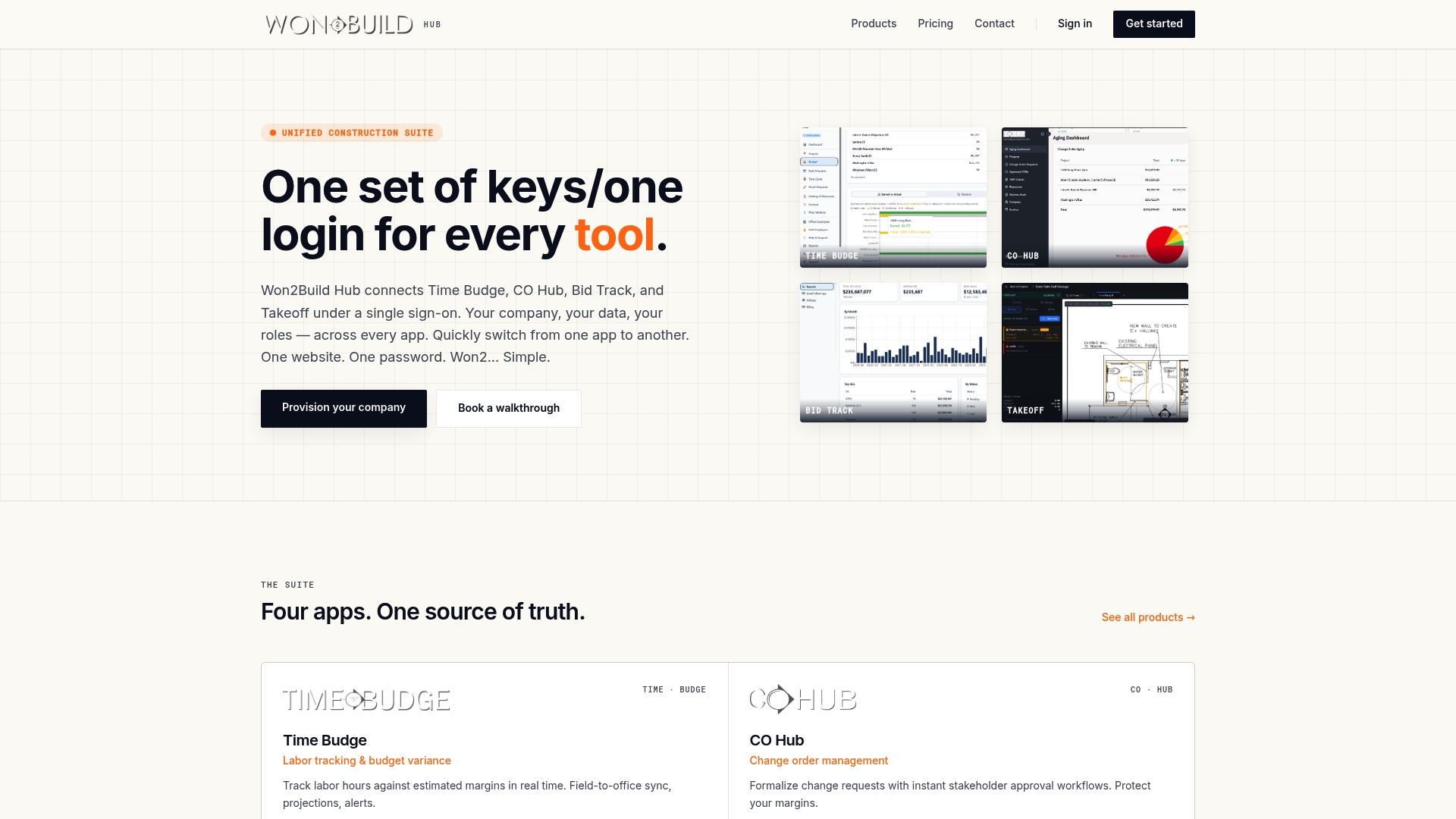
Every app is reached through a single sign-on, so a sheet you measured in the office is the same job your field team and change order log refer to, with no double entry.
How we think about sheet sets
We build Won2Build from the subcontractor’s side of the table. A sheet set is not a filing exercise to us. It is the evidence behind every number you put in front of a general contractor: the bid quantity, the hours behind a change and the change order itself.
What we see as the real cost of a messy set is double entry and lost data. Someone measures a wall in one place, retypes it in a bid sheet, retypes it again in a change order, and somewhere in that chain a revision gets missed. That is why our four apps share one login and one flow of project data, with the field and the office looking at the same information.
Our advice is the same whatever you use: index every sheet, keep every revision, and make each change trace to a sheet number and a quantity. When that habit is built into the tools you already use to bid, track labor and bill changes, it stops being extra work, and the margin you priced stays protected.
Jen Reese
FAQ
What does sheet set organization mean in construction?
It means keeping the drawing sheets for a project sorted by discipline, indexed by sheet number and tracked by revision. The goal is that anyone on your team can find the current version of any sheet and see what changed. For a subcontractor, it also means each change can be tied to scope and cost.
How should I name plan sheet files?
Use a repeatable pattern such as project code, sheet number, title and revision, for example HOSP12_A-101_FirstFloorPlan_Rev2.pdf. Keep the sheet number exactly as printed on the drawing. Put the revision last so versions of one sheet sort together, and avoid words like “final” that stop being true.
What is the difference between an addendum and a bulletin?
An addendum changes the bidding documents before a contract is signed. A bulletin or supplemental instruction changes the documents after award. Record which one each sheet came from, because it often decides whether the change was in your bid or may justify a change order. Your contract sets the rules, so read its change provisions.
How do I know I have the latest revision of a sheet?
Compare each incoming sheet’s number, title and revision against your own sheet index, not only the transmittal. Mark the old version superseded the same day. Then send the new sheet to the field and pull the old printouts, so one current version is the only one in circulation.
Sources
- United States National CAD Standard v5, Uniform Drawing System, Module 1: Sheet Identification
- AIA Community Hub: Order of Precedence for Contract Documents
Recommended
One login for estimating, bid tracking, change orders, and labor.
The Hub is free. Pay only for the apps you turn on.
Create your free Hub account- Addenda Tracking in Construction: A Sub's PlaybookHow commercial subcontractors track addenda: build a log, read each change against your scope, update takeoffs and quotes, and confirm acknowledgment before bid day.
- Data Security for Construction Subcontractors: A Practical GuideWhat data a commercial subcontractor must protect, where it leaks between field and office, and the controls that cut the risk: MFA, access, backups, contracts.
- Bid Management Software Cost: What Subcontractors PayWhat bid management software costs a U.S. subcontractor in 2026: price ranges by tier, fees that add up, and a simple way to work out your annual cost.