
How to Link Takeoff to Estimate for Accurate Bids
Link your takeoff quantities to your estimate for accurate bids. Discover the seamless integration method that reduces errors and saves time.

Yes, you should link your takeoff quantities directly into your estimate rather than retyping them. The most reliable path is an integrated mapping workflow that pulls measured quantities straight into matching estimate line items, or a careful export/import that preserves item codes when your tools aren’t connected. Either approach beats manual re-entry, which is where most bid errors start.
Before you link anything, confirm you have:
- The project linked in both your takeoff and estimating tools (same project ID, not just a similar name)
- Consistent item codes or MasterFormat references across both files
- Estimate history or sync enabled, so that updates to the takeoff flow through correctly
Won2Build Takeoff is built around this exact handoff. It’s the integrated option this article relies on, because it removes the export step entirely for subcontractors already running an estimate in the same suite.
Key Takeaways
Linking takeoff quantities to estimate line items through consistent item codes and staged reconciliation checks is what prevents costly bid errors.
| Point | Details |
|---|---|
| Confirm prerequisites first | Link the project, standardize item codes, and enable estimate history before mapping anything. |
| Review auto-matches manually | Auto-match speeds up linking but still misses items with similar names and different units. |
| Map by code, not just name | MasterFormat codes or a project dictionary give a more durable match than description text alone. |
| Verify in three passes | Check sync landing, trade rollups against the takeoff summary, then spot-check 5 to 10 line extensions. |
| Won2Build removes the re-entry step | Takeoff and Bid Track share one login, so quantities sync into the estimate without export or manual keying. |
Table of Contents
- How Do You Link Takeoff Quantities to Estimate Line Items?
- What Mapping Strategy Prevents Item Mismatches?
- Which Data Pathway Should You Use to Sync Takeoff and Estimate?
- How Do You Verify a Linked Estimate Is Correct?
- Why Do Takeoff Links Break, and How Do You Fix Them?
- What Habits Keep Linked Estimates Accurate Over Time?
- How Won2Build’s Takeoff Connects Directly to Your Bid
- What Actually Matters Most in This Workflow?
- Get Your Takeoff Quantities Into Your Estimate Without Retyping Them
- Documentation and Guides Worth Bookmarking
- Sources
How Do You Link Takeoff Quantities to Estimate Line Items?
The linking workflow itself is short. Getting the inputs right beforehand is what actually determines whether it goes smoothly.
- Prepare your takeoff data first. Every line needs an item code, a plain-language description, a unit of measure, and a sheet reference (something like “A2.1, Detail 4”). Skip the sheet reference and you’ll spend twice as long tracing a quantity back to its source later.
- Open the project in your estimating tool and check prerequisites. Confirm the project link is active and that estimate history (or a similar sync log) is turned on. This is the setting that lets you trace which takeoff revision fed which estimate number.
- Pick your linking method. If your takeoff and estimating tools are integrated, use the “link to takeoff” or equivalent function and let auto-match pair items by code or name. If they’re separate systems, you’ll export and import instead, and you’ll map fields manually where auto-match misses.
- Review the auto-matched pairs before accepting them. Auto-match is fast but not perfect. Names like “3/4 conduit” and “conduit 3/4 in” often need a human eye to confirm they’re the same item.
- Save or commit the link. Once committed, the quantity should populate the estimate’s quantity column directly, with the unit cost from your pricebook applying automatically to produce the extended total.
- Confirm the quantity actually appears where expected. Open the estimate line and check that the number matches the takeoff summary before you move to the next trade.
Skipping step 4 is the single most common source of downstream errors. Auto-match tools are genuinely good, but “good” still means occasional false matches on items with similar names and different units.
What Mapping Strategy Prevents Item Mismatches?
Mapping is where most takeoff to estimate workflows quietly break down, usually because two systems use different names for the same thing.
- Use MasterFormat codes or a project-level item-code dictionary as your primary matching key. Codes don’t drift the way descriptions do, and they give you a one-to-one match you can audit later. Clear naming conventions and sheet references keep the link auditable, which matters the moment a change order forces you to trace a quantity back to its source.
- When codes don’t exist yet, use smart-name parsing plus a manual reconciliation sheet. A simple two-column list, takeoff name on one side, estimate name on the other, catches mismatches before they hit your bid.
- Handle assemblies and waste factors explicitly. An assembly item in your takeoff (say, a wall assembly with studs, insulation, and drywall) needs to map to either one estimate line or several, and you decide that once, not every time you bid.
- Convert units at the mapping step, not after. Square feet in the takeoff and square yards in the estimate is a rounding disaster waiting to happen if you convert after the link instead of during it.
Pro Tip: Build your item-code dictionary once, as a shared spreadsheet, and add to it every time you hit a new item type. Six months in, most of your mapping becomes automatic instead of a fresh puzzle on every bid.
Which Data Pathway Should You Use to Sync Takeoff and Estimate?
The right transfer method depends on how often the project changes and how many people touch the estimate.
- Direct integration or live sync is the strongest option for active bids and ongoing projects where quantities keep shifting. Changes in the takeoff show up in the estimate without anyone touching an export button.
- CSV or XML export/import works well for one-off bids or when your tools aren’t connected. At minimum, your file needs item code, quantity, unit, description, and sheet reference columns. Miss the sheet reference and reconciliation later gets painful.
- APIs and scheduled syncs suit larger estimating shops running nightly updates across multiple active projects, where manual export every time isn’t realistic.
Smaller shops usually start with CSV and graduate to integration once volume justifies it.
How Do You Verify a Linked Estimate Is Correct?
Linking the data isn’t the finish line. Verification is what catches the errors before your client does.
- Run rollups by trade and by sheet, then compare each total against the takeoff summary. A mismatch here usually means a missed link, not a math error.
- Spot-check 5 to 10 representative items for unit cost accuracy and correct extended totals. Pick a mix of high-value and routine items, not just the biggest line.
- Apply a tolerance threshold, typically ±1 to 3 percent, and flag anything outside it for manual review rather than assuming it’s fine.
This three-layer check, sync confirmation, trade rollup, then spot-check, mirrors how iterative validation and calibration reduce error in estimation processes generally: each pass catches what the previous one missed, and skipping straight to “looks fine” is how a 2% quantity error turns into a five-figure change order fight.
Why Do Takeoff Links Break, and How Do You Fix Them?
Most linking failures trace back to one of three causes, and all three have fast fixes.
- Unit mismatches. If quantities don’t reconcile, check unit abbreviations first, “SF” versus “SY” is the most common culprit, before assuming the takeoff itself is wrong.
- Duplicate or missing entries. Run a dedupe check by name and code, then pull a missing-item report to catch anything that never made it across.
- Sync failures on integrated links. Check project permissions and confirm estimate history is actually toggled on, then re-run the sync. Scenario-aware validation matters here: a sync that works on a small residential job can behave differently on a large commercial estimate with hundreds of line items, so don’t assume yesterday’s fix applies today.
What Habits Keep Linked Estimates Accurate Over Time?
A few recurring practices separate estimators who trust their linked numbers from those who re-check everything by hand.
Version-control your item-code dictionary the way you’d version-control drawings, so nobody’s working from last year’s naming convention. Keep unit-cost assumptions in one centralized pricebook that syncs to your estimating tool, instead of scattered across old bid files. And always run a short reconciliation pass before finalizing, with a second reviewer on larger jobs.
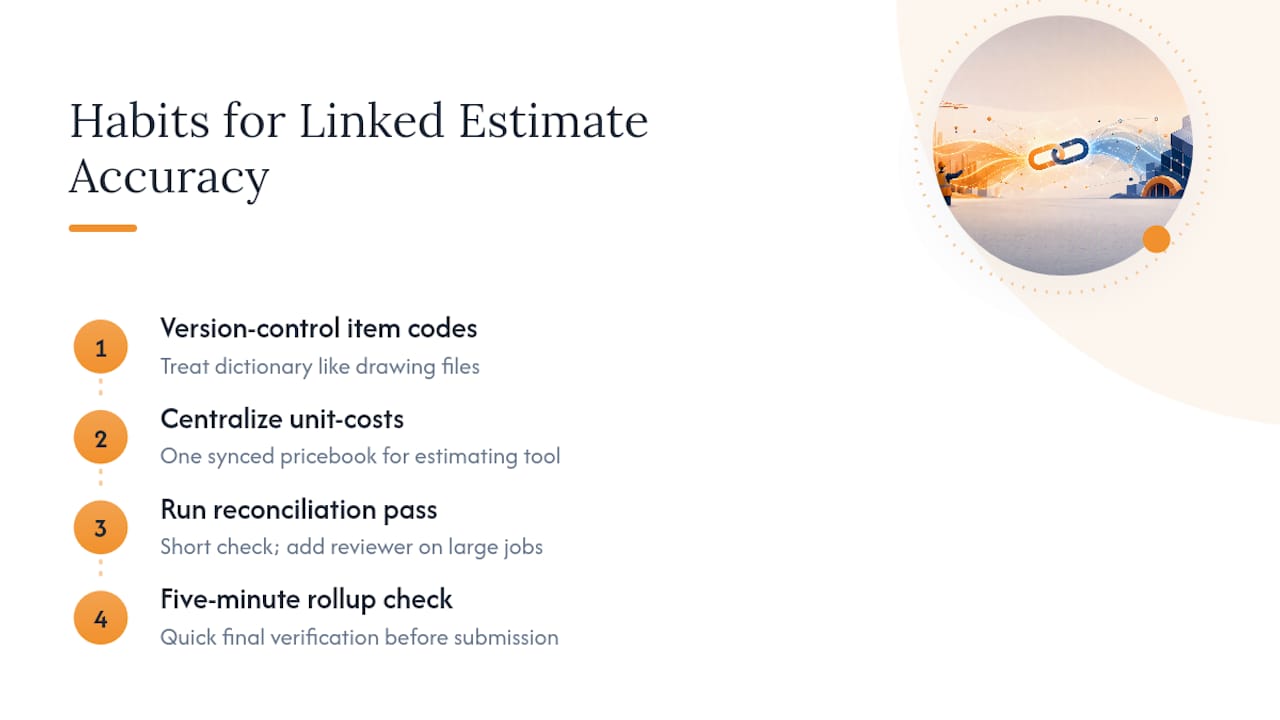
Pro Tip: A five-minute rollup check before you submit a bid costs almost nothing. Skipping it and finding the error after the client has your number costs a lot more.
How Won2Build’s Takeoff Connects Directly to Your Bid
Won2Build’s single sign-on is the piece that makes this whole workflow less painful in practice. Quantities measured in Takeoff flow straight into Bid Track without a re-entry step, because both apps run on the same login and the same project record.
- Item-code mapping happens once per project and carries forward automatically to new takeoff lines.
- CSV export stays available for teams that need to hand data to a partner system.
- Per-project sync keeps field measurements and office estimates aligned in real time.
- Reconciliation reporting flags rollup mismatches before you submit, matching the tolerance checks covered above.
Related reading on structuring your takeoff sheets and why measurement accuracy drives bid confidence covers the upstream steps this article assumes you’ve already handled. This piece was put together with input from Jen Reese, drawing on how subcontractors actually build and reconcile bids in the field.
What Actually Matters Most in This Workflow?
Most advice on linking takeoff to estimate focuses on the mechanics of the link itself, auto-match settings, export formats, sync toggles. That’s not wrong, but it’s not where the risk actually lives. The risk lives in the mapping decisions you make before you ever click “link”: whether your item codes are consistent, whether an assembly gets split into three estimate lines or stays as one, whether someone standardized “SF” versus “sq ft” three projects ago.
Conventional guidance treats reconciliation as a final quality check, something you do once at the end. I’d argue it works better as three smaller checks distributed through the process: confirm the sync landed, confirm trade rollups match the takeoff summary, then spot-check extensions before you submit. Waiting until the end to catch a mapping error means re-tracing every line instead of catching it where it happened.
If you take one thing from this, prioritize your item-code dictionary over your software settings. The best sync in the world can’t fix a mapping problem that started with inconsistent naming three bids ago.
— Jen Reese
Get Your Takeoff Quantities Into Your Estimate Without Retyping Them
Won2Build is built for subcontractors who are tired of copying numbers from a takeoff sheet into a bid by hand. The Takeoff module maps quantities directly to your estimate line items inside Bid Track, using the same login and the same project record, so the mapping and reconciliation steps covered above happen inside one workflow instead of across two disconnected tools.
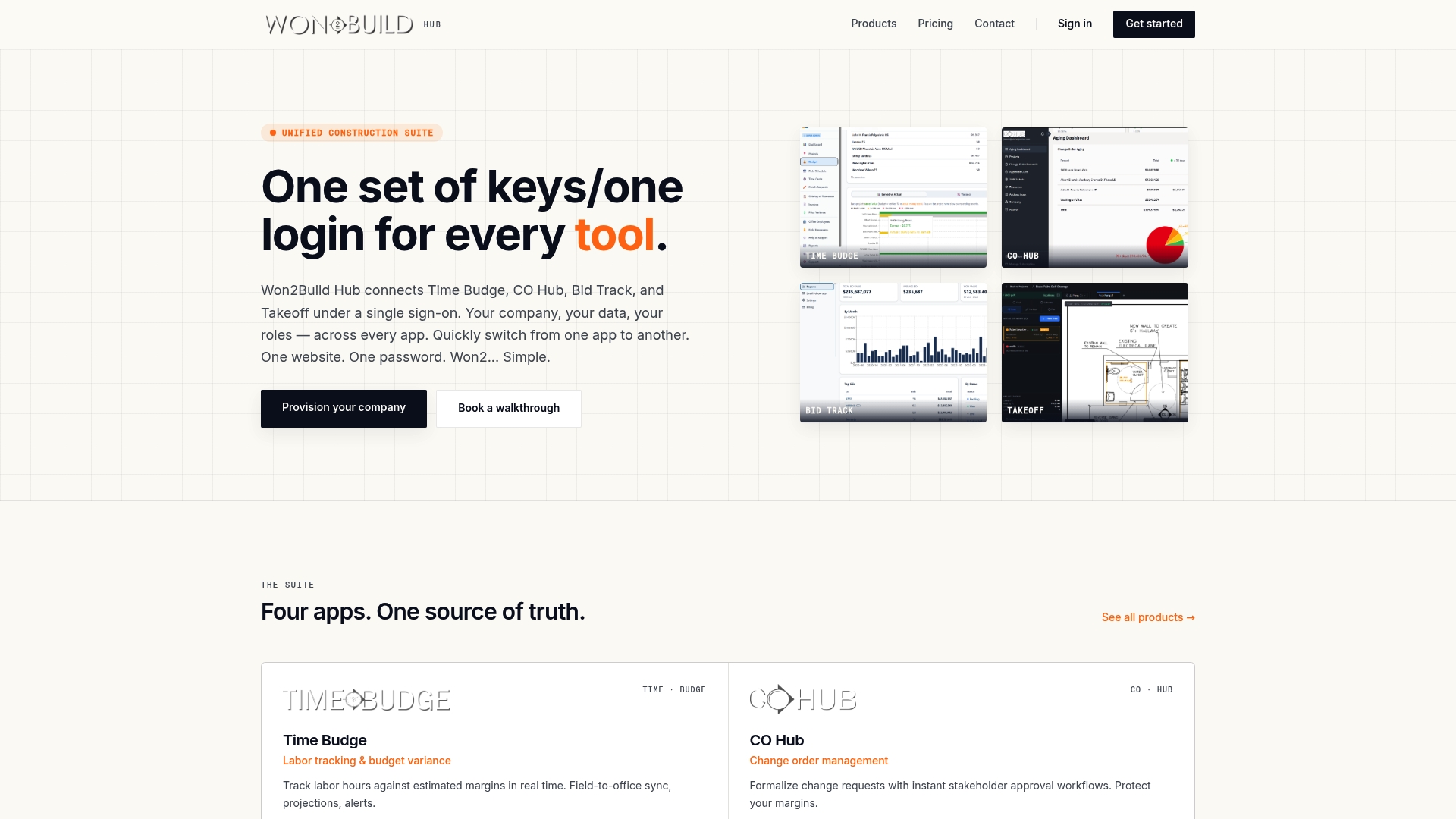
That matters most on multi-trade bids, where a single unit mismatch between two spreadsheets can quietly cost thousands before anyone catches it. Won2Build’s real-time field-to-office sync and per-project reporting are designed to catch that at the rollup stage, not after you’ve already submitted. If your current process still involves exporting a takeoff and re-keying it into an estimate, check out the Takeoff product page and see what a linked workflow looks like on your next bid.
Documentation and Guides Worth Bookmarking
For deeper background on the practices covered here, these resources go further into specific pieces of the workflow:
- How to Associate Takeoff Items with Estimates: A Comprehensive Guide, on naming conventions and sheet references
- Digital Quantity Takeoff: A Contractor’s Complete Guide, for preparing takeoff data before mapping
- How to Coordinate Design Contractor Workflow Effectively, on aligning handoffs between design and field teams
- Won2Build Takeoff product page, for the integrated linking workflow described above
Sources
- How to Associate Takeoff Items with Estimates: A Comprehensive Guide
- PAINT: Path-Aware Iterative Network Tomography (link metric estimation research)
- An evaluation of link estimation algorithms for RPL in dynamic wireless sensor networks
Recommended
One login for estimating, bid tracking, change orders, and labor.
The Hub is free. Pay only for the apps you turn on.
Create your free Hub account- Change Order Documentation: Subcontractors’ Same Day Field ChecklistLearn how subcontractors can document field changes the same day, support costs and schedule impacts, and carry approved changes into SOV updates.
- Managers: Make Mobile Field Workflows Resilient for 72 Hour OutagesPlaybook for field managers: offline first mobile workflows, resilient sync and conflict handling, compliance first AI guardrails, and practical pilot steps.
- Daily Signed Records: Force Account Tracking for Managers & InspectorsField checklist for project managers and inspectors to keep force account tracking audit-ready: use daily signed records for labor, equipment, and...